
Hello,
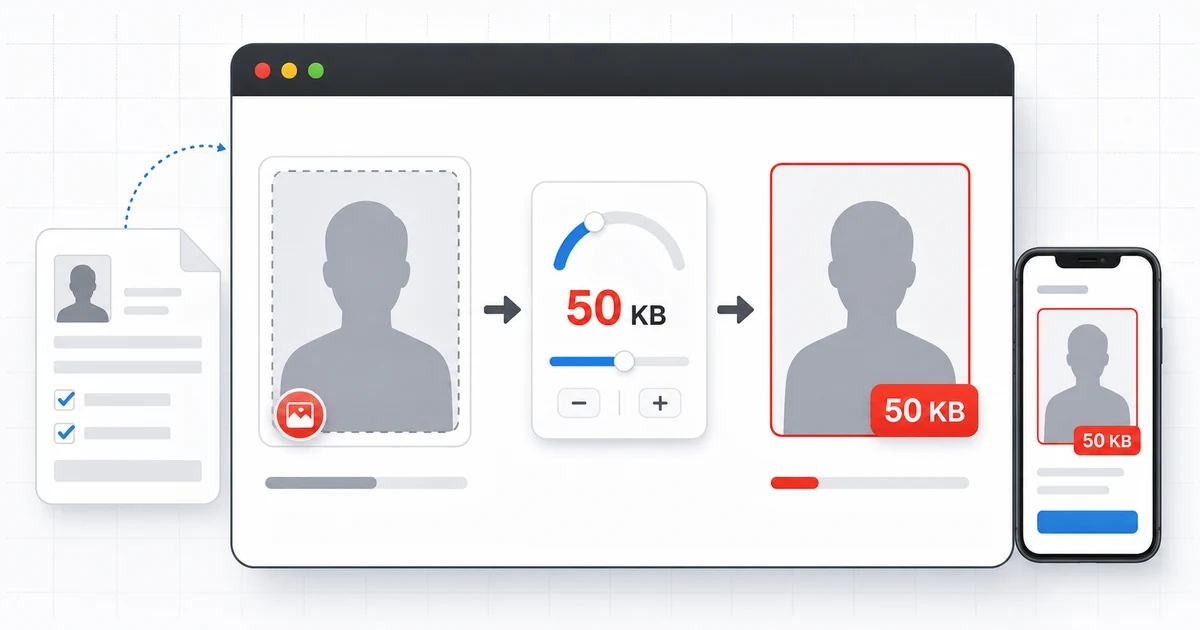
Today, we will discuss one of PDFRoot’s special and highly useful tools called Resize Image to Exact KB.
The main purpose of creating this tool was to help students, competitive exam candidates, and people filling out online forms for government or private-sector recruitment.
Many recruitment forms require applicants to upload a photograph, signature, or document image in a specific file size. For example, a form may require an image of 20 KB, 50 KB, 100 KB, or 200 KB. For an ordinary person, resizing an image to the required file size can be difficult.
This problem is even greater for people living in villages or remote areas. They may not have access to a nearby cyber café or similar service and may have to travel a long distance just to resize an image.
After seeing these difficulties, we created the Resize Image to Exact KB tool. Its main purpose is to provide a simple solution to this common problem.
With this tool, users can resize an image according to the requirements of their form or document. They can prepare images in sizes such as 20 KB, 50 KB, 100 KB, 200 KB, or another custom size.
We hope that PDFRoot’s Resize Image to Exact KB tool will be useful for students, job applicants, and everyone who needs to prepare images for online forms.
Why I Created This Tool
I created this tool after seeing students and job applicants struggle to prepare photographs and documents for online forms, especially in villages and remote areas where cyber café services may not be easily available. Some applicants have to travel a long distance only to resize a photograph or signature to the required file size. PDFRoot’s Resize Image to Exact KB tool was created to make this process easier and more accessible.
How to Resize an Image to an Exact KB Size
- Open the PDFRoot Resize Image to Exact KB tool.
- Upload a JPG, JPEG, PNG, or WebP image.
- Enter the required target size, such as 20 KB, 50 KB, 100 KB, or 200 KB.
- Process the image.
- Preview the final result.
- Download the resized image to a mobile phone or computer.
- Upload the downloaded image to the required application form.
Where Is an Exact KB Image Required?
- Passport-size photographs
- Signatures
- Identity documents
- Certificates and marksheets
- Government recruitment forms
- Competitive examination forms
- College and university admission forms
- Scholarship applications
- Private-sector job application forms
Examples of Common Image Size Requirements
| Required Size | Possible Use |
|---|---|
| 20 KB | Signature or small photograph |
| 50 KB | Passport-size photograph |
| 100 KB | Photograph or identity document |
| 200 KB | Certificate or scanned document |
These are general examples only. Applicants should always follow the exact requirements mentioned on the official application website or recruitment notification.
Why Use PDFRoot Resize Image to Exact KB?
- No advanced photo-editing knowledge is required.
- Users can enter the required KB size themselves.
- The tool works on mobile phones and desktop computers.
- It can save time while filling out online forms.
- Users do not need complicated image-editing software.
- It can help people prepare images without travelling only for image resizing.
- Files Processed Locally
The exact-KB workflow runs in the browser using local image and canvas processing. If you need different dimensions before reducing file size, try Resize Image. You can also use Compress Image, Crop Image, or Passport Photo Maker when those workflows better match the form instructions.
Important Tips Before Uploading Your Image
- Confirm that the photograph or document is clear and readable.
- Make sure the image format matches the form requirements.
- Check the required width and height if dimensions are mentioned.
- Do not upload a blurred or stretched image.
- Keep a copy of the original image.
- Preview the processed image before submitting the form.
- Confirm that the face, signature, or document details are not cropped.
- Check both the file size in KB and image dimensions in pixels.
Common Mistakes to Avoid
- Confusing KB with MB
- Uploading the wrong file format
- Ignoring the required width and height
- Compressing the image until it becomes unclear
- Uploading a photograph with an incorrect background
- Uploading an old or unrelated photograph
- Cropping part of the face, signature, or document
- Submitting the form without checking the uploaded image preview
Useful Tools for Recruitment Forms
Some recruitment portals publish more specific photograph or signature rules. PDFRoot also provides dedicated helpers for SSC photo resizing, RRB signature resizing, IBPS photo and signature preparation, and OJAS photo resizing. Always compare the selected tool with the current official notification before preparing a file.
Frequently Asked Questions
What does KB mean in an image?
KB stands for kilobytes. It represents the storage size of an image file. A form asking for a 50 KB image is referring to the file size, not necessarily its width or height.
Can I resize an image to 20 KB or 50 KB?
Yes. Enter the required target size in the PDFRoot tool, process the image, and preview the final result before downloading it.
Can I use this tool on a mobile phone?
Yes. The tool is designed to work on both mobile phones and desktop computers.
Is image file size the same as image dimensions?
No. File size is measured in KB or MB, while image dimensions are measured in pixels, such as 200 × 230 pixels. Some forms specify both requirements.
Will resizing reduce image quality?
Reducing an image’s file size may affect its quality. Always preview the processed image and make sure the photograph, signature, or document remains clear and readable.
Can I resize JPG and PNG images?
Yes. The tool currently supports JPG, JPEG, PNG, and WebP images.
Should I check the official recruitment notification?
Yes. Always follow the official notification or application instructions because every examination, recruitment, admission, or scholarship form may have different image requirements.
Why is my image not being accepted after resizing?
The form may also require a specific image format, width, height, background, or minimum and maximum file-size range. Check every requirement mentioned on the official form.
Conclusion
PDFRoot’s Resize Image to Exact KB tool was created to reduce the difficulty students and applicants face when preparing photographs, signatures, and document images for online forms. Check the official requirements, process the image, preview it carefully, and keep the original file before submitting your application.
Anand Joshi
Founder of PDFRoot